
# Website Accessibility
8 Tips, Tricks, and Best Practices for Digital Accessibility
This guide breaks down the most effective web accessibility best practices local governments can apply today to help improve digital access and compliance.

CivicPlus
February 3, 2026
6 min
ADA website compliance has always been important, but it’s also often placed on the back burner as local governments work with limited resources.
But the back burner is no longer an option. Updated DOJ regulations require entities to meet strict accessibility standards starting in April 2027.
Fortunately, there are practical ways to make compliance achievable and sustainable. These eight web accessibility best practices will help local government websites and digital content be accessible to all.
1. Keep Assistive Technology in Mind
Many people rely on technology to access websites, including screen readers, optical character recognition (OCR) software systems, magnification software, and voice recognition tools. If a site isn’t optimized for these technologies, critical information can become inaccessible.
Start by testing a site with a screen reader (e.g., NVDA, JAWS, or your system’s built-in reader) and confirm that all interactive elements are keyboard-friendly. Check that images have descriptive alt text (more on that below), headings follow a logical structure, and form fields include labels.
Use trusted accessibility scans, like the free scan from CivicPlus®, to help identify gaps and confirm alignment with WCAG standards. For those short on time or resources, this is one of the fastest ways to uncover issues before they impact residents.
2. Include Descriptive Alt Text to Improve Website Accessibility
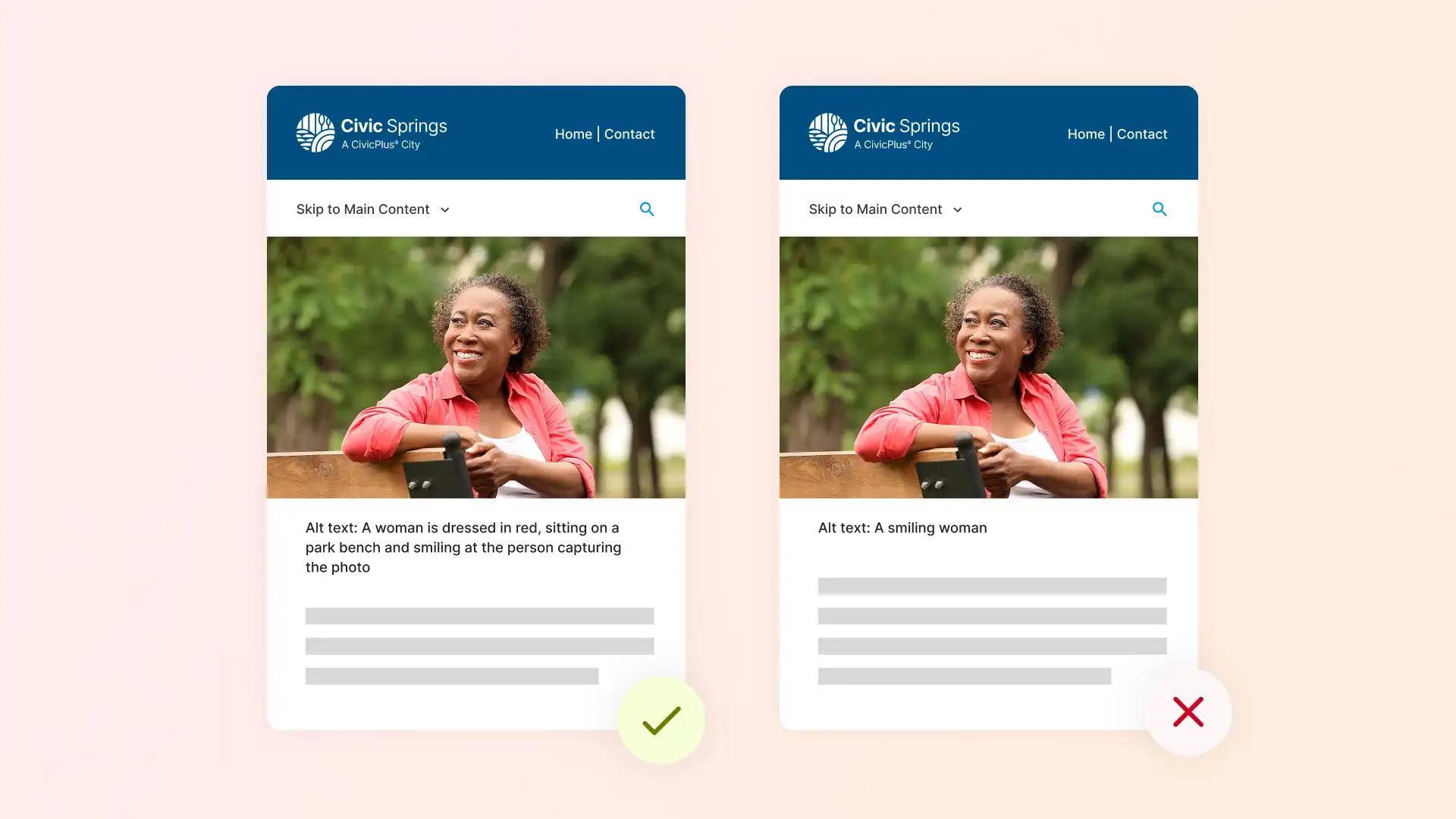
Alt text, or alternative text, serves as a written description for digital images. For people who use screen readers, alt text is a huge help in interpreting visual content. So, it’s important to include alt text with every visual on a page.
When writing alt text:
- Be descriptive, not generic: Instead of “image of a park,” use “City Park with walking trails and playground; kids play on the equipment as their parents look on, and people walk the trails with their dogs.”
- Avoid keyword stuffing: When it comes to alt text, focus on accuracy and descriptive language instead of worrying about keywords.
- Skip phrases like “image of” or “picture of”: Screen readers already announce it’s an image.
To learn more about alt text and its best practices, visit sources like Section508.gov, HubSpot, and Semrush.
3. Check and Correct Color Contrast Issues
Low contrast between text and background makes web content difficult to read for users with visual impairments. According to WCAG guidelines, a site should meet these minimum contrast ratios:
- 4.5:1 for normal text
- 3:1 for large text (18pt or 14pt bold)
Use a color contrast checker to verify compliance and adjust colors as needed.
Quick tip: Avoid light gray text on white backgrounds or pastel color combinations; they often fail accessibility standards.
4. Make PDFs Accessible and Compliant
Many agencies have a large library of portal document formats (PDFs) on their website. PDFs often contain essential public information (like forms, reports, and meeting agendas) that residents rely on.
Unless they fall into one of the DOJ’s narrow exceptions, the PDFs will need to conform to WCAG 2.1 AA. If these documents aren’t accessible, screen reader users or those using other assistive technologies can’t read them, creating barriers to critical services and compliance risks for local governments.
Solutions like DocAccess can speed up and simplify the process of making PDFs accessible by automatically converting all current and future PDFs into screen reader-friendly, WCAG 2.1 AA-aligned HTML transcripts.

5. Organize Content with Clear Heading Hierarchy
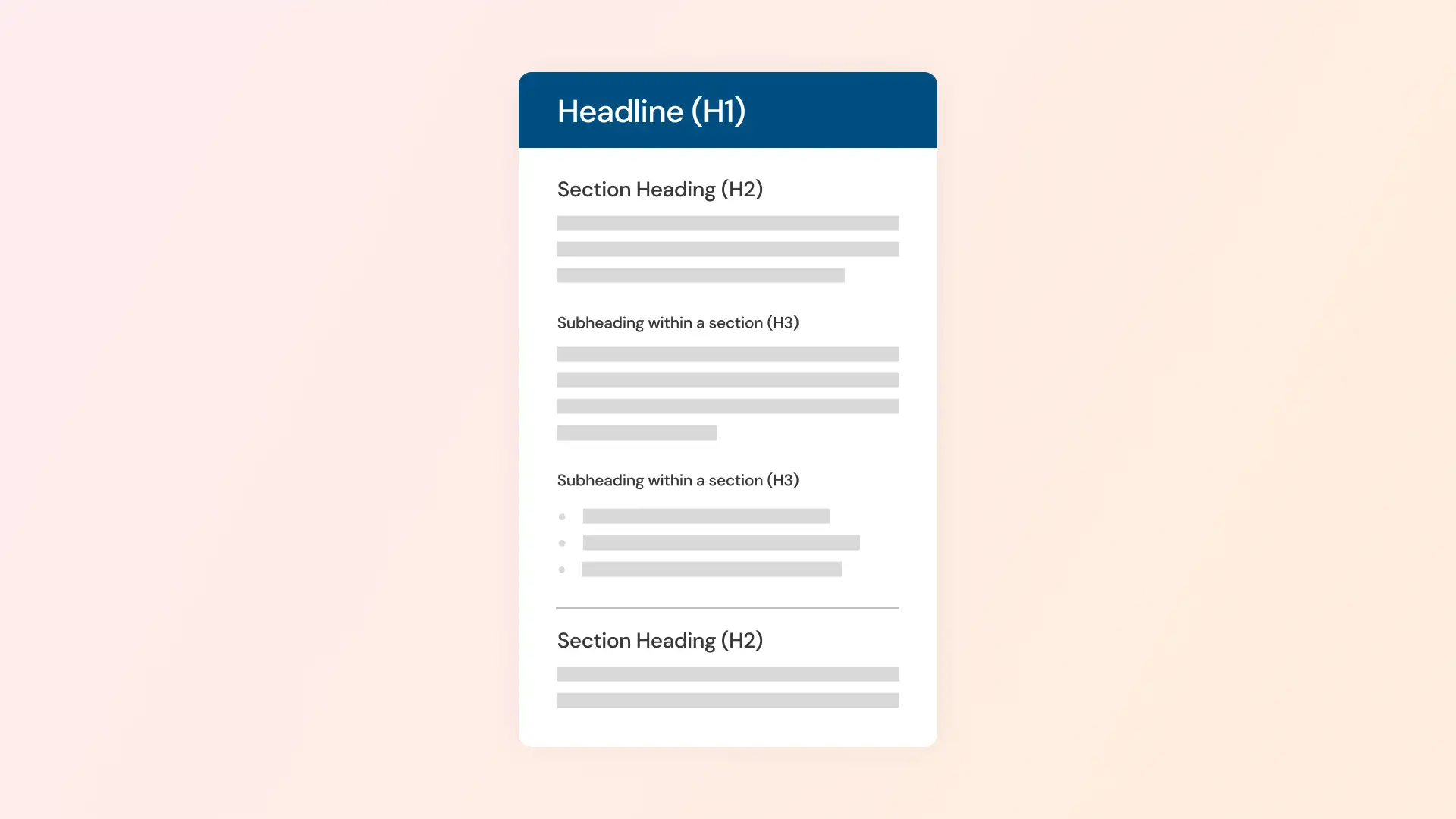
Headings help organize content, providing structure and flow. Proper formatting improves readability and user experience, which is why it’s key for web accessibility (and SEO).
Use clear heading hierarchy (H1 for page title, H2 for main sections, H3 for subsections, and so on) to make online content easy to navigate. Assistive technologies rely on this structure to interpret the page correctly, and AI and search engines use it to understand the content.
Avoid skipping levels (e.g., jumping from H1 to H3) or using headings for styling only.
SEO tip: Headings are a great opportunity to add primary keywords (the most important keywords). But don’t keyword stuff or force them in there; include relevant keywords naturally.
6. Confirm Text Remains Accessible When Enlarged
Many users need enlarged text to read comfortably, particularly on mobile devices. If a website is not optimized for text scaling, content can overlap, become cut off, or require horizontal scrolling, creating a poor user experience and accessibility barriers.
When testing text scaling, confirm the following:
- Text remains clear and legible
- No content is cut off
- Horizontal scrolling is not required
- Adequate spacing exists between text, images, and buttons
Quick tip: Browser zoom or accessibility tools, like those offered by CivicPlus, allow users to enlarge text at will.
7. Verify Full Keyboard Accessibility
Government websites should be fully navigable without a mouse to support users with visual or motor impairments. Test keyboard accessibility by confirming:
- All interactive elements (links, buttons, menus) can be reached using only the keyboard.
- Navigation follows a logical order.
- Visible focus indicators show where the user is on the page.
- Users can navigate freely without getting stuck in any element.
For more, refer to W3C’s keyboard accessibility guidelines.
8. Use Tools Designed for Digital Accessibility
Prioritizing accessibility creates a gateway for residents to fully engage, contribute, and access the services they deserve, fulfilling the fundamental function of local government: to serve all.
Meeting accessibility standards across every web page and digital asset, however, can be complex and resource-intensive.
CivicPlus supports web accessibility with hands-off website remediation that combines automated fixes, expert audits, and continuous monitoring. It also automatically converts all current and future PDFs into screen reader-friendly, WCAG 2.1 AA-aligned HTML transcripts that translate into 150+ languages.
With these capabilities, organizations can stay ahead of accessibility challenges and help make critical information available to everyone.
Not sure where your website stands? Get a free accessibility scan today and receive tailored insights to help your organization achieve full compliance.
Disclaimer:
This content is provided for general informational purposes only and does not constitute legal advice. CivicPlus makes no guarantees as to the accuracy or suitability of this material and disclaims all liability for actions taken or not taken based on it. Use of this content does not create any attorney-client or advisory relationship. You should consult your own legal counsel before adopting or implementing any policies. CivicPlus may update or withdraw this material at any time without notice.
Written by
CivicPlus



Got Specific Questions?
Speak With an Accessibility Solutions Expert Today About Your Current Challenges and How We Can Help.